Builders in Lazy Teams
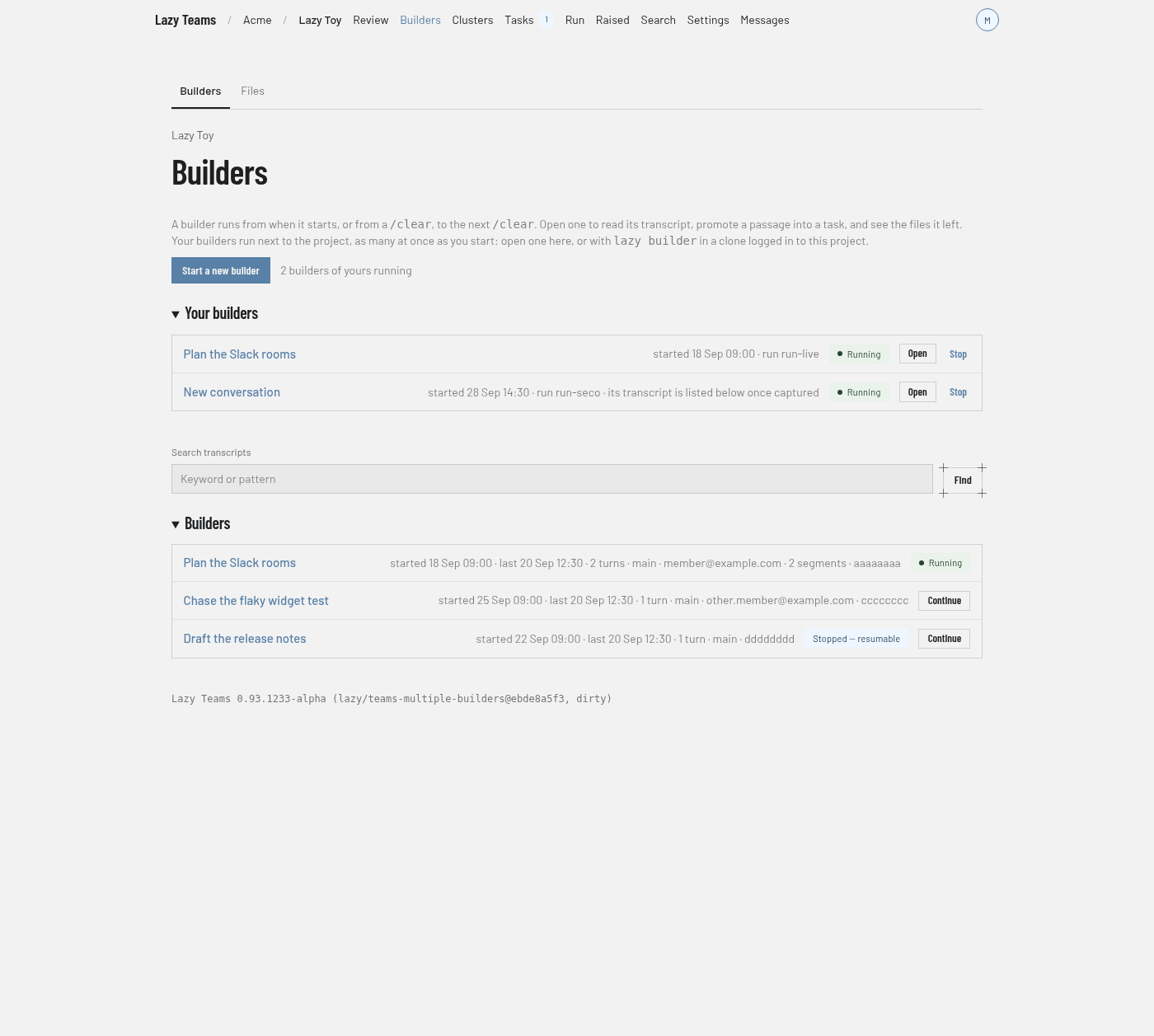
Open Builders in your project to start a builder — as many at once as you like — return to one of yours, read previous conversations, and find the files builders have left for you.
The terminal
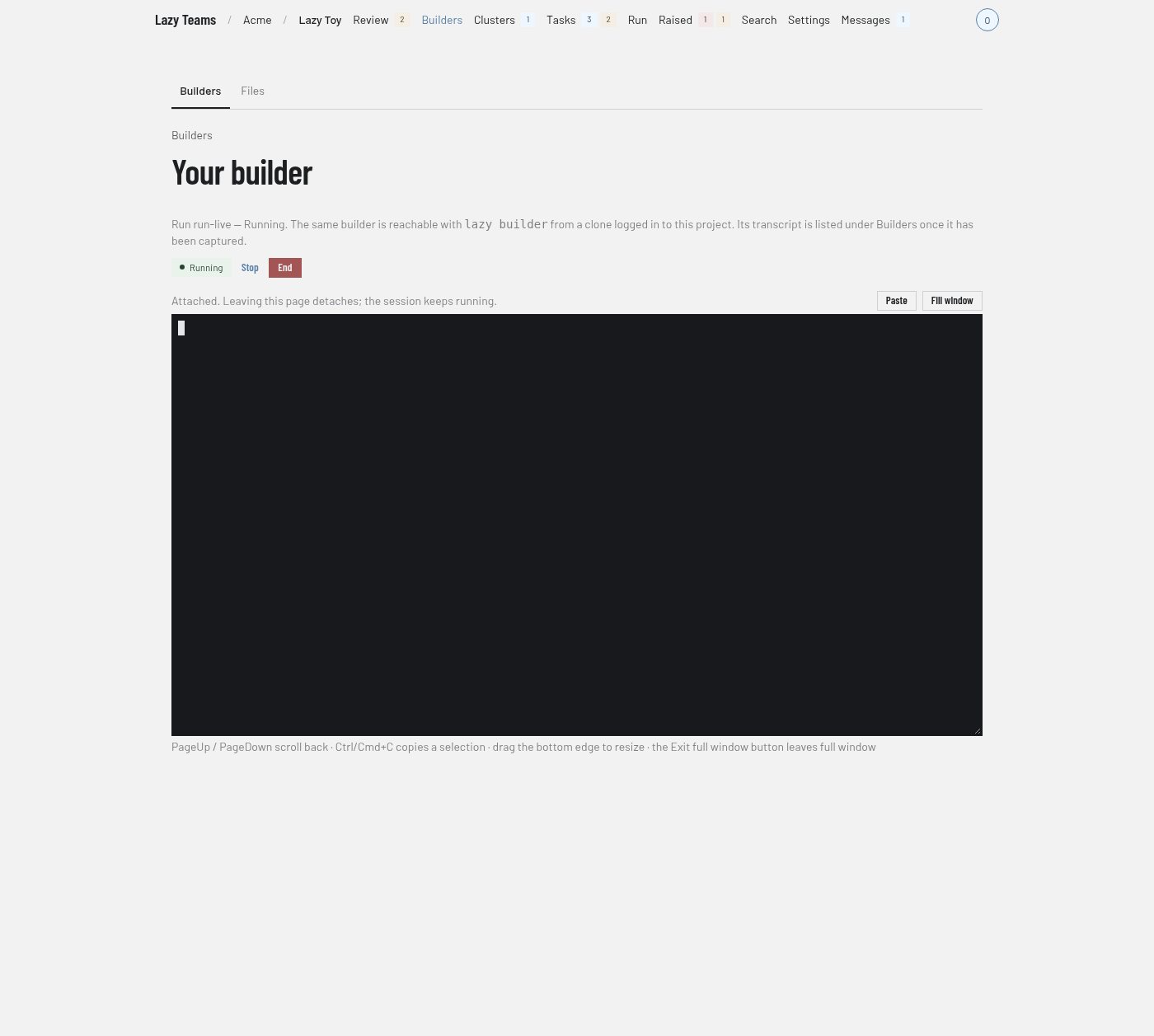
Choose Fill window above the terminal to make it cover the whole window, and Exit full window (or Esc, when the terminal itself is not focused — inside it Esc goes to your program) to return to the page. You can also drag the terminal's bottom-right resize handle to change its height. Page Up and Page Down scroll the terminal's captured output (on Claude Code's fullscreen view they go to Claude Code, which scrolls itself), Ctrl/Cmd+C copies a selection, a copy Claude Code makes lands on your clipboard, and Ctrl/Cmd+V or Paste pastes; other key combinations keep their existing terminal behavior. Every terminal in Teams — builders, a task's Shell, Watch and Verify's Run in shell, and the admin machine shell — has the same controls.
Teams builders run in isolated containers with permission bypass enabled. This does not change permission settings or warnings for builders you launch on your own machine.
Create a task from messages
In a previous builder's transcript, check Select message beside each message you want to use. Messages need not be consecutive. Selections remain as you move between transcript pages in the same browser tab.
Choose Create task to open the normal new-task screen. Its prompt contains only the selected messages, in conversation order. Set the goal and edit the prompt before choosing Add to backlog or Create and start. Selecting messages alone never creates a task.
Edits to this prompt are saved as a separate local draft. Returning to the same selection restores your edits without replacing an unrelated new-task draft.
Messages render as markdown, with subtly different backgrounds for the human and builder.
Files
Open Files to read captured scratch files. Rendered displays markdown, Source displays its text within Teams, and Raw opens the plain text without the Teams interface. Download saves the stored file content.
Files recorded by name only have no stored content to download. Their page shows why capture skipped them, rather than offering an empty file.
Running environment
Every builder receives a generated description of where it runs, alongside its system instructions. It identifies Teams or solo lazy, the runner and deployment backend, the daemon platform, access to files and scratch, and the available browser address. Facts that lazy cannot verify are marked unknown. Custom system instructions do not replace this context. Task agents receive the same deployment context.
The generated context also explains how to inspect another task's committed code without copying its tree: read files at the recorded commit with git, or request a file-specific task diff. To run checks that write files, use a disposable export with the project's required dependencies and setup. Keep other tasks' worktrees unchanged, even when they are visible from the builder.