Take your first task from creation to accept in Lazy Teams
Lazy Teams is in private alpha. It is not generally available, screens and behaviour may change, and you need an installation that someone has set up for you or that you have set up yourself.
The screenshots show sample data, so your project's names and the agent's report will differ.
By the end of this tutorial you will have signed in to Lazy Teams, created and started a task on a project, and reviewed and accepted its work in the browser.
Prerequisites
- A Lazy Teams installation you can reach. To run one yourself, see Lazy Teams first-run setup and Self-hosting Lazy Teams.
- An account on it: either the administrator account created during setup, or one you were invited to.
- A project already registered on your team. Your administrator adds projects; this tutorial does not cover that.
- A model credential connected for your account. Every task you start runs on your own account. If you have none, the Dashboard and your team's page show a Connect a model credential to run tasks. notice with a Connect → link; follow it before starting a task.
1. Sign in
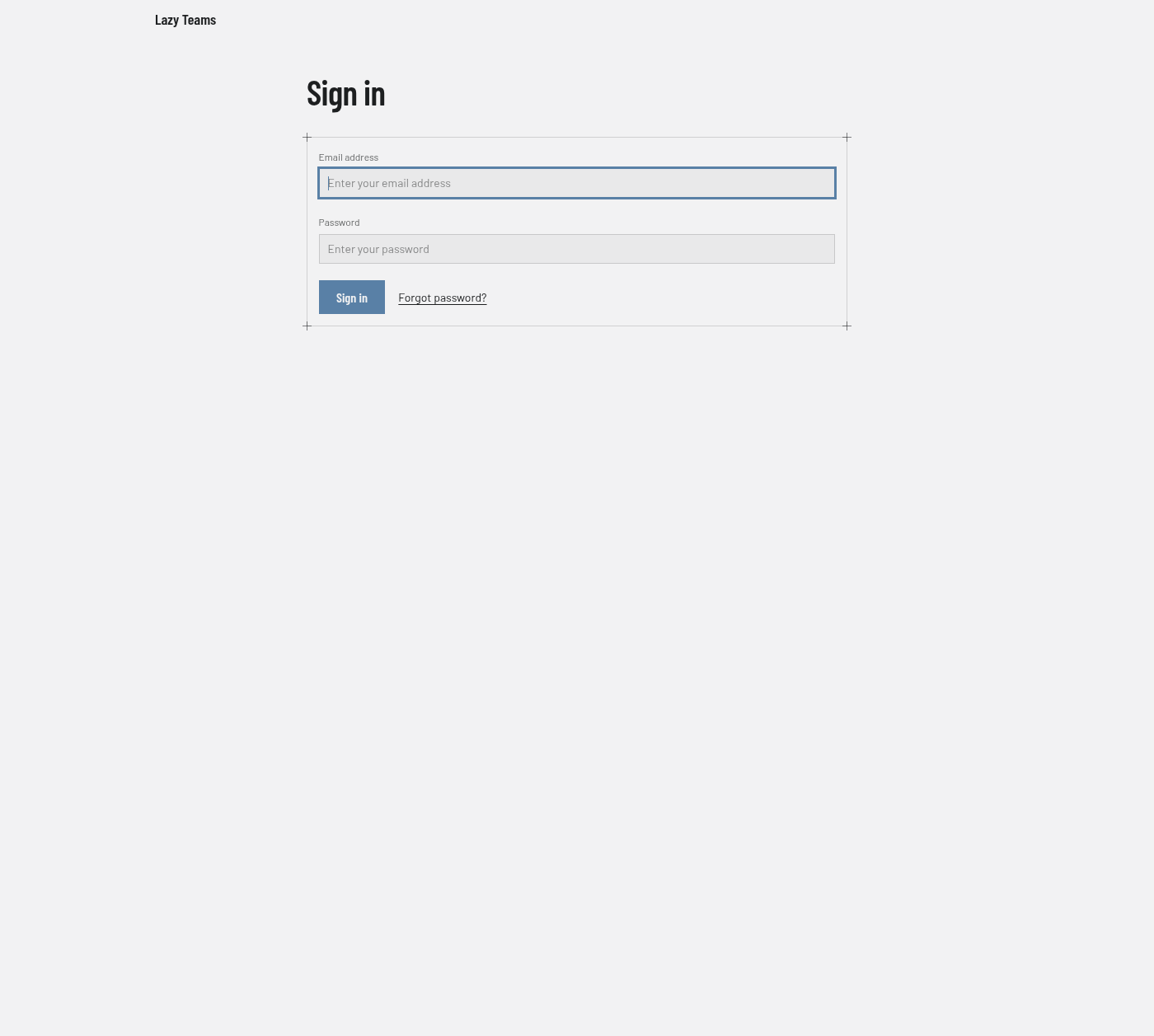
Open your installation's address in a browser. On the Sign in page, enter your Email address and Password and click Sign in.
If you were invited and have no account yet, open the invitation link and use Create account and join (or Email me a link, if it asks you to confirm your address first). If you already have an account, the link offers Sign in to answer, then Accept invitation.
2. Open a project
After signing in you land on the Dashboard. Under Your projects, click the project you want to work on. (You can also open your team and use its Projects section.) You should see the project's page, with a New task button.
3. Create and start a task
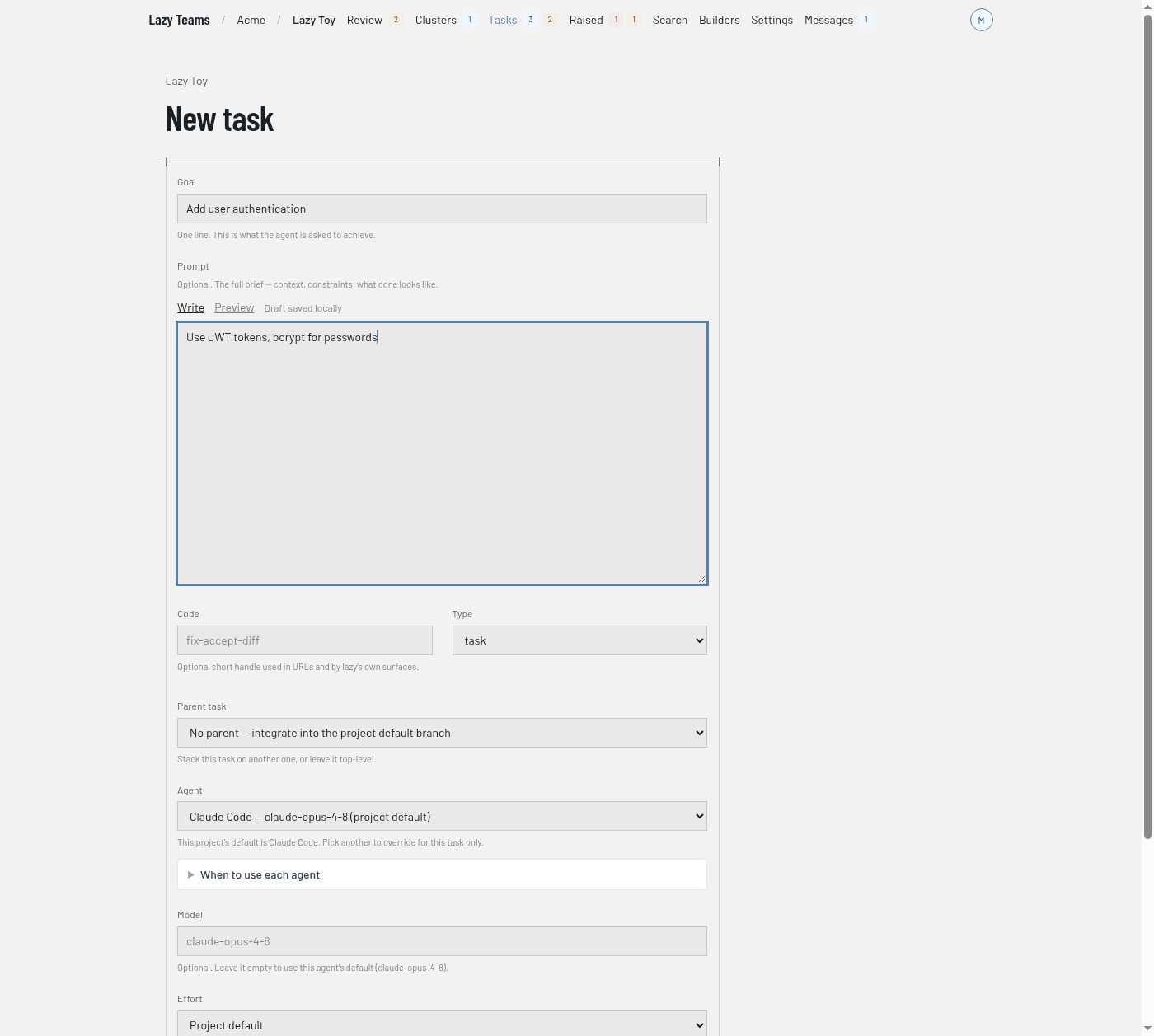
The Parent task choice on the form sets where the work lands. Left on "No parent — integrate into the project default branch", the task merges into the project's default branch; choosing a task makes it a subtask that merges into that task. The accept page in step 6 shows the destination as Merges into.
- Click New task.
- Fill in Goal, for example
Add user authentication, and the prompt for the agent. Leave Parent task on "No parent" and the other fields, such as Agent, Model and Effort, on their defaults. - Click Create and start. (Add to backlog creates the task without running it; you can start it later with Start on its page.)
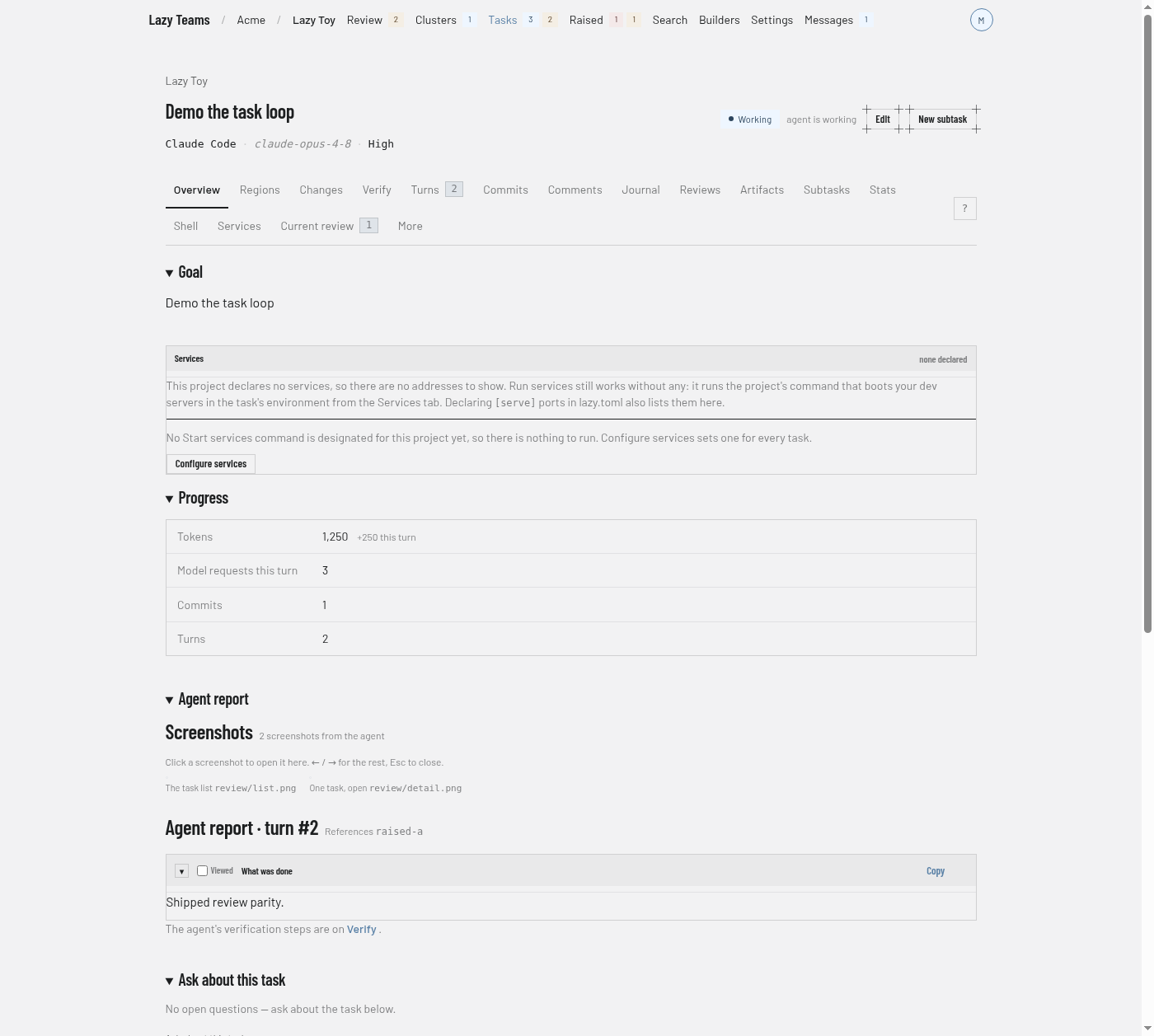
You should land on the task's page, with its status showing that the agent is working.
4. Review the work
When the agent finishes its turn, the task is waiting for you. Stay on the task's Overview or Current review tab: the feedback form and the Accept button appear only there. On the task's page:
- Overview shows the goal, progress and the Agent report.
- Changes shows the diff.
- Current review shows what stands between the task and accept.
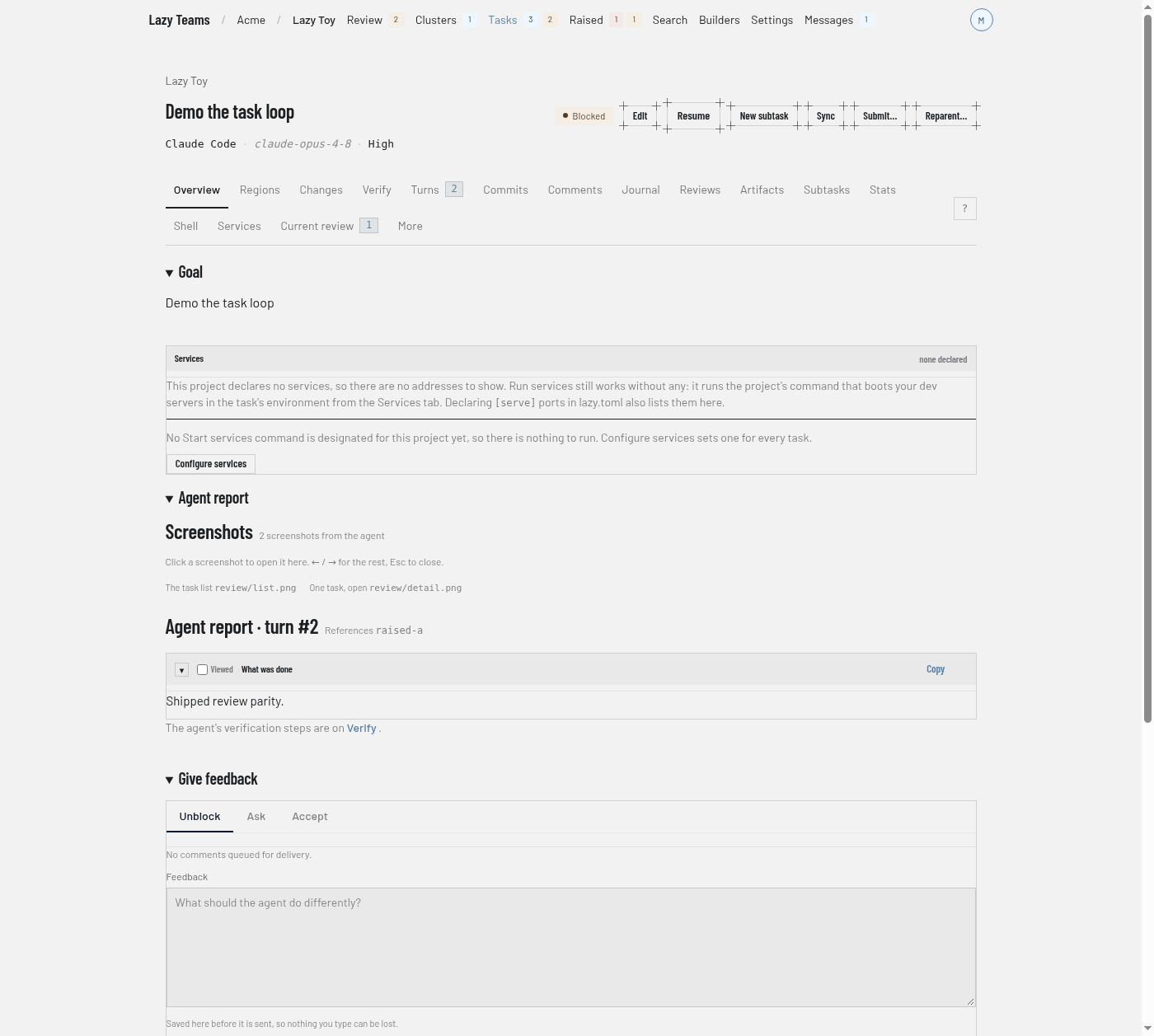
To ask a question without changing anything, open the Ask tab in the Give feedback section and type it there.
5. Give feedback (optional)
If the work needs changes, stay on the Unblock tab of Give feedback, type what the agent should do differently in the Feedback box, and click Send feedback and resume. The agent continues; review again when it finishes.
6. Accept
Click Accept. A page titled "Accept this task?" shows the branch the work merges into (Merges into; check it before you continue) and how many commits it carries, with a preview of the changes. If the agent left a question that blocks accept, you decide it on this page first.
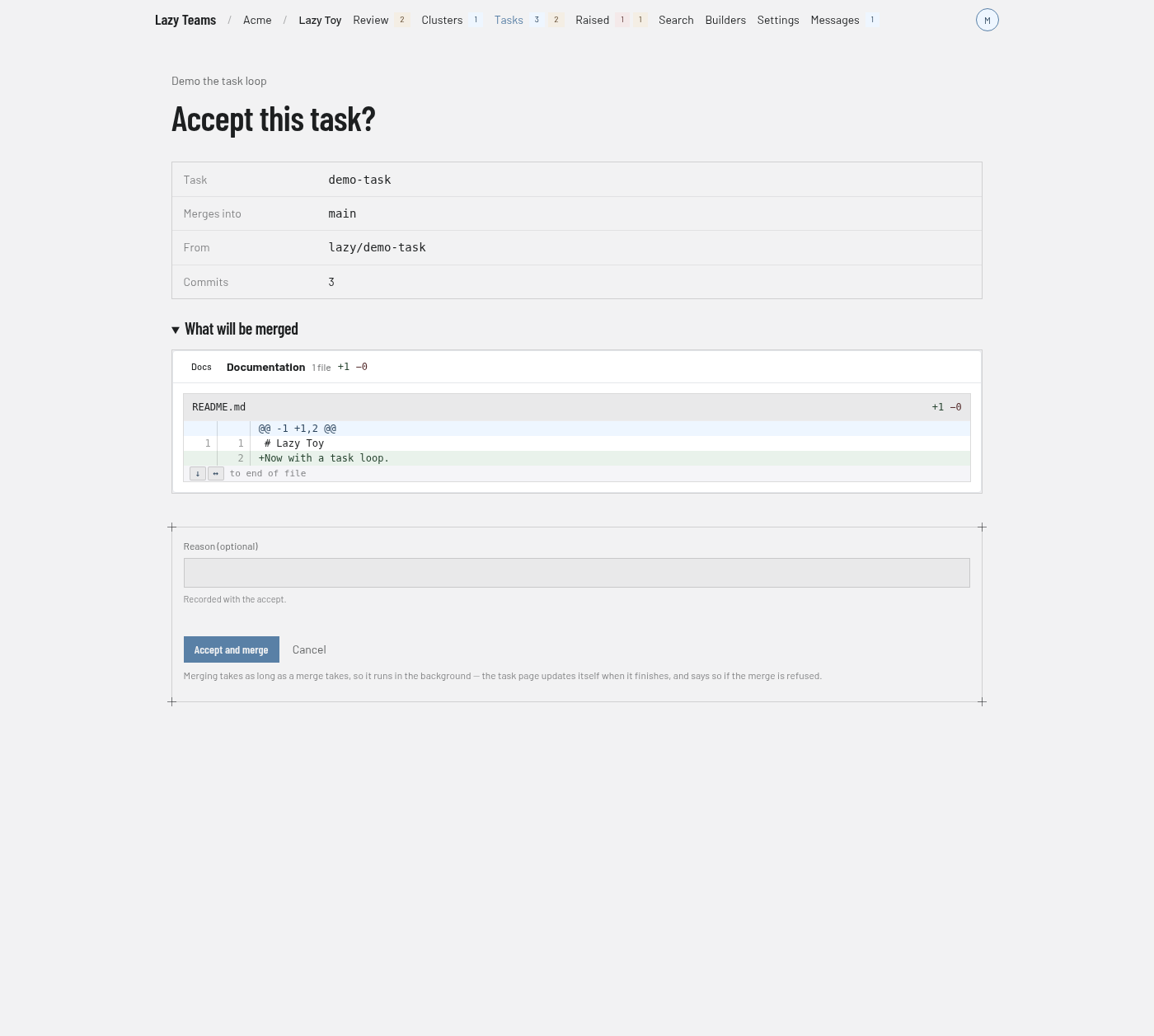
Click Accept and merge. The task is merged into that branch and finishes.
What next
- Lazy Teams — what Lazy Teams is and how it relates to the command line.
- Reviewing tasks in Lazy Teams — the review screens in detail.
- How to review and accept a task and How to give feedback.
- Tasks and turns.