Take your first task from creation to accept in the dashboard
By the end of this tutorial you will have created a task in lazy's browser dashboard, watched an agent do the work, and accepted it, all without leaving the browser. The screenshots come from a small sample project, so your task's name and the agent's report will differ.
Prerequisites
- lazy installed and set up in a repository, as in Getting started steps 1 and 2 (
lazy inithas been run). - A model credential; see Credentials.
1. Open the dashboard
From your repository, run:
lazy dashboard
lazy asks the daemon for a one-time login link and opens it in your browser. You should land on the dashboard, with a navigation bar that includes Dashboard, Clusters, Tasks, Review, Raised, Builders, Scratch, Settings and Inbox.
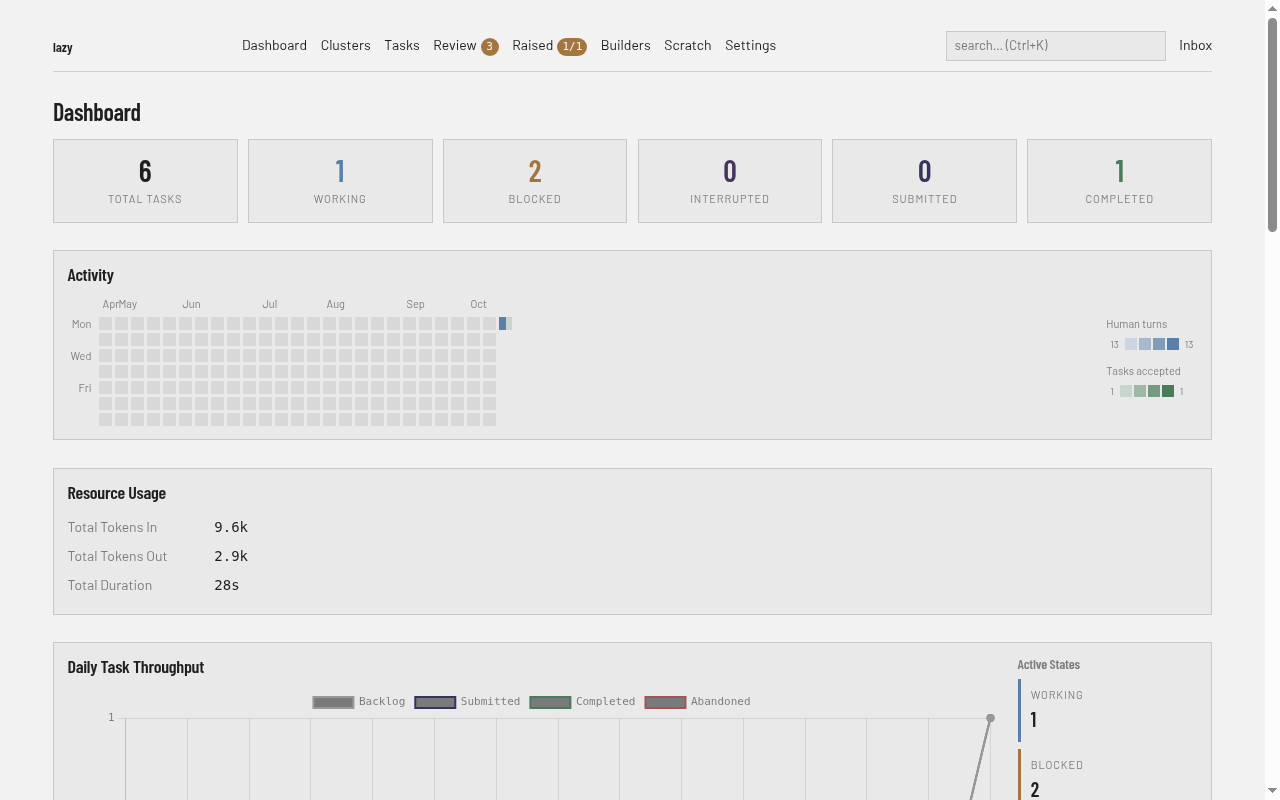
If no browser can be opened (for example over SSH), lazy prints the link instead. Open it yourself; it works once. Run lazy dashboard again for a new one, or lazy dashboard --print to print one deliberately.
2. Create and start a task
A top-level task merges into your repository's default integration branch (origin/HEAD, or main if that is not set), not the branch you happen to have checked out. A subtask merges into its parent task. In the New task form, the Parent field sets this: leave it blank for the default integration branch, enter a task code to make a subtask, or a branch name to target that branch. From the command line the same choice is lazy create --parent <branch>.
- Click Tasks in the navigation bar, then New task.
- Fill in Goal, for example
Add a gift-card payment option, and Prompt, for exampleLet a shopper pay part of an order with a gift card. Reject unknown card numbers.. - Leave Parent blank and the other fields on their defaults. Code is filled in from the goal if you leave it blank.
- Tick Start now. Without it the task lands in the backlog, and you start it later with Start on its page.
- Click Create task.
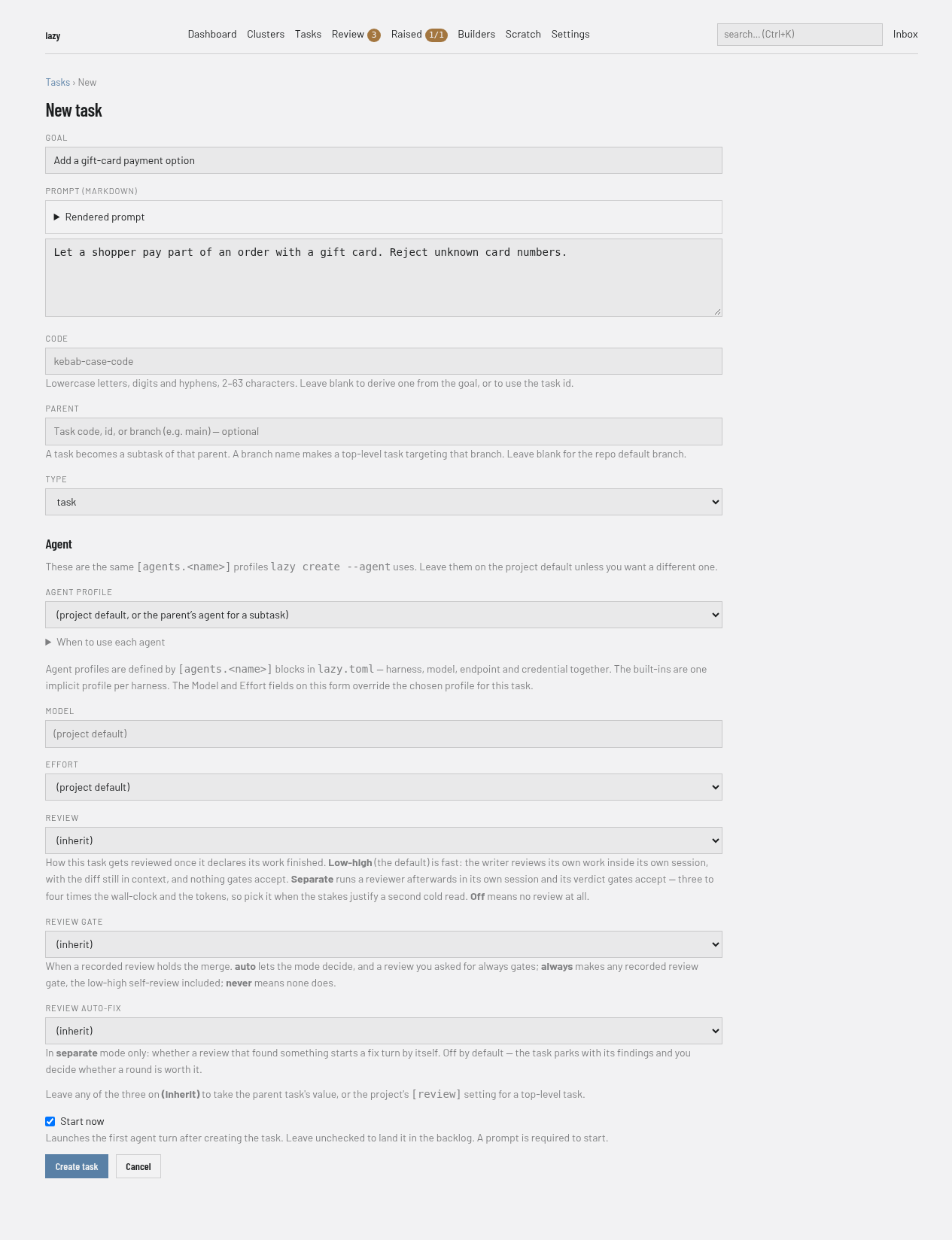
You should see a dialog titled "Starting task" narrating the launch, and then the task's page.
3. Watch it work
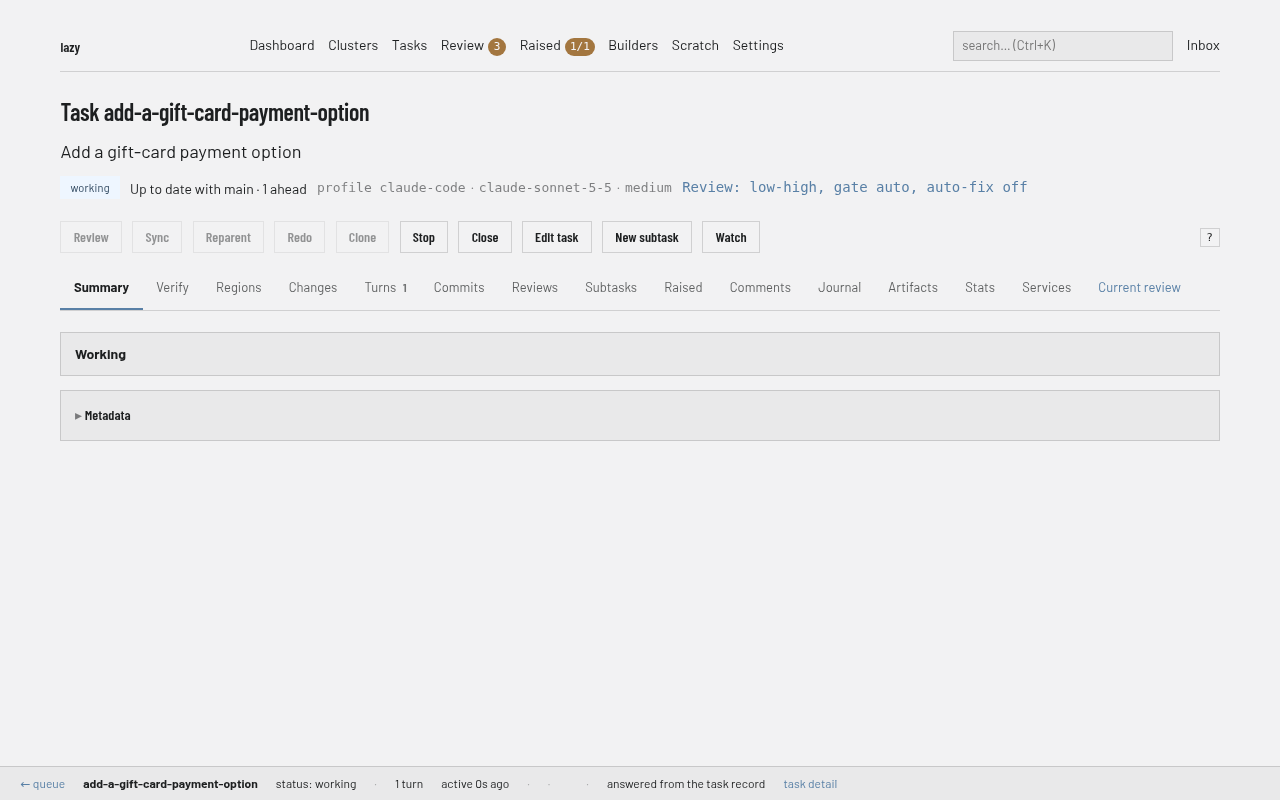
The task's page shows its status; while the agent works it reads working. You can leave the page open or come back later: the task shows up under Tasks, and under Review once it needs you. While it works, Stop halts it.
4. Look at what it did
When the agent finishes its turn the status becomes blocked, meaning it is waiting for you. Open the task. Its Summary tab shows the agent's report.
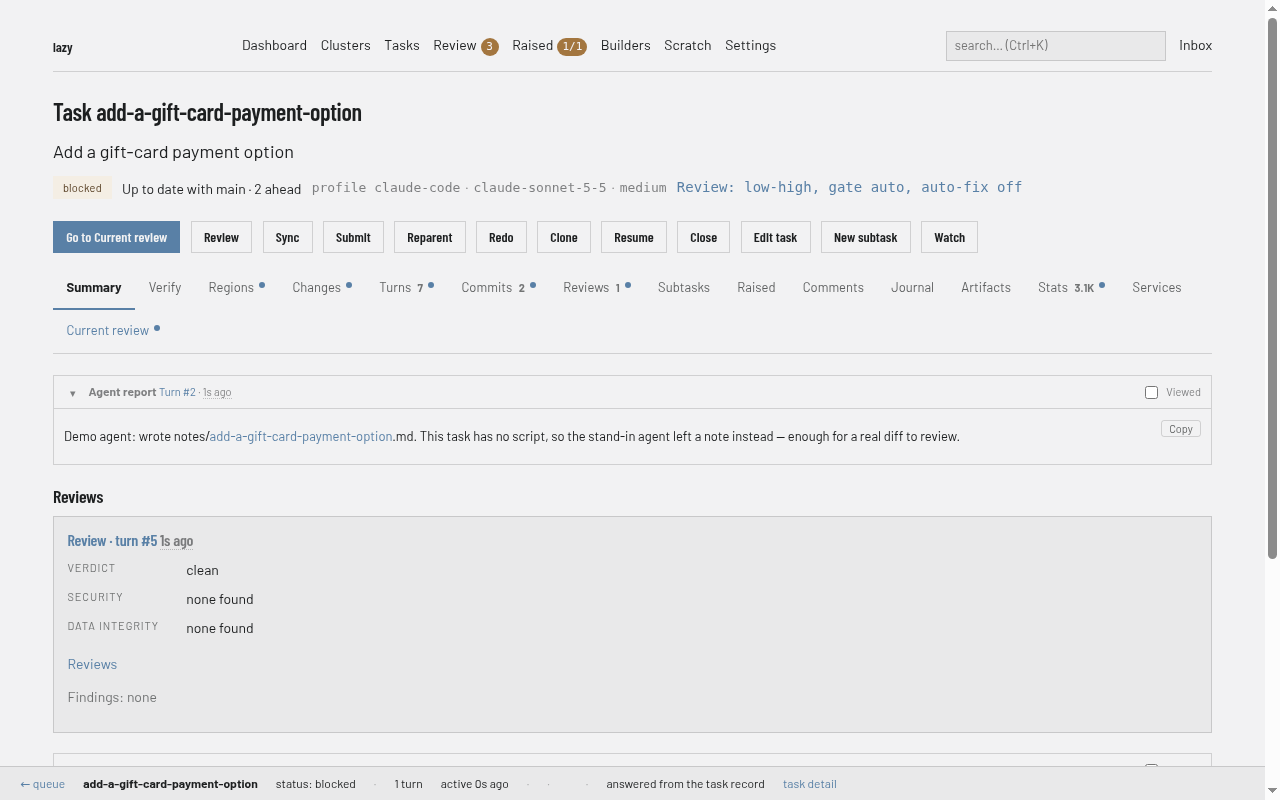
Click Current review (or Go to Current review). The review page lists what stands between the task and accept, any comments you have queued and questions you have asked, and the buttons to act on it. The agent's report is on the Summary tab and the diff on the Changes tab.
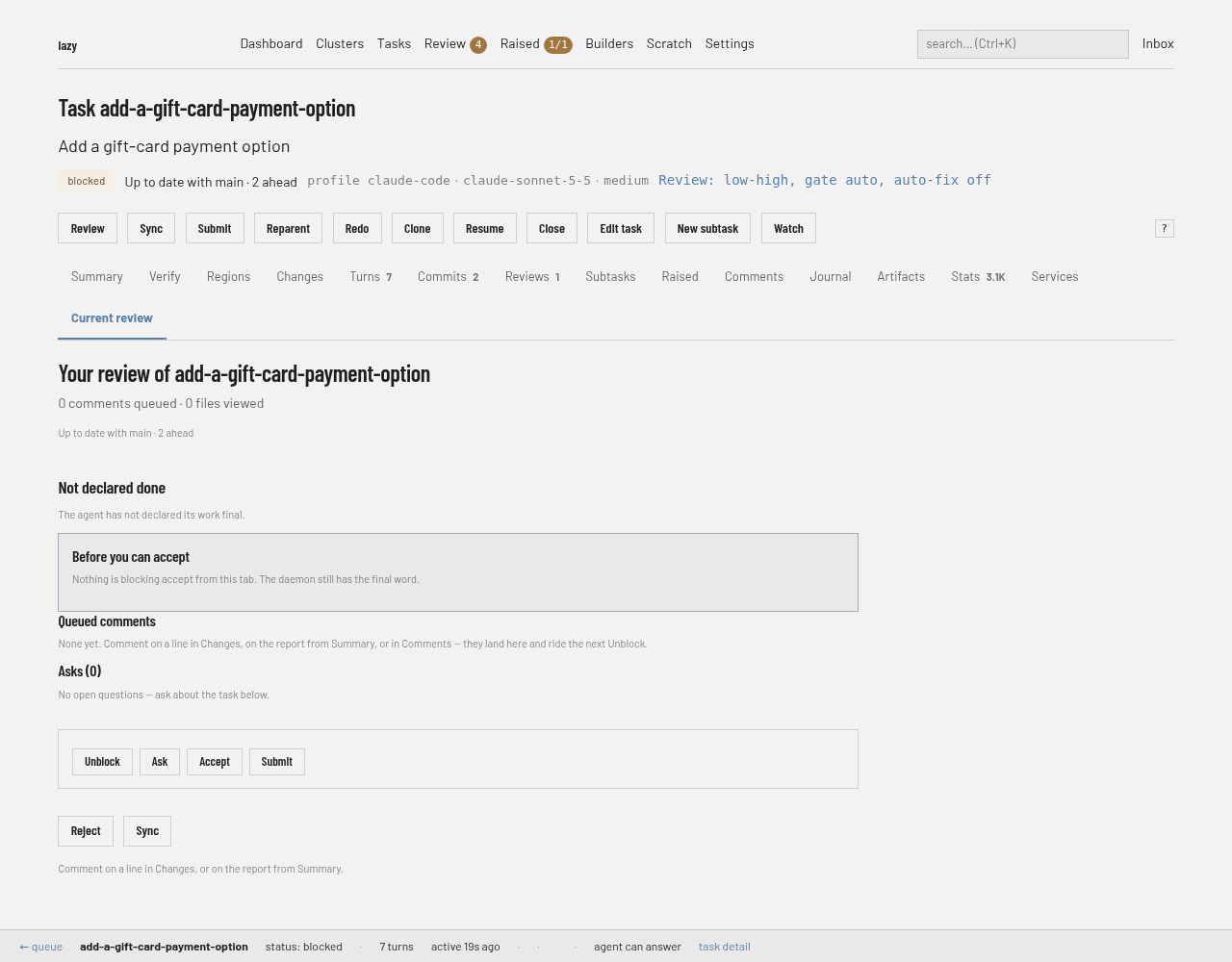
Read the changes. If you want to understand a choice, click Ask and type a question; the agent answers without changing any code.
5. Give feedback (optional)
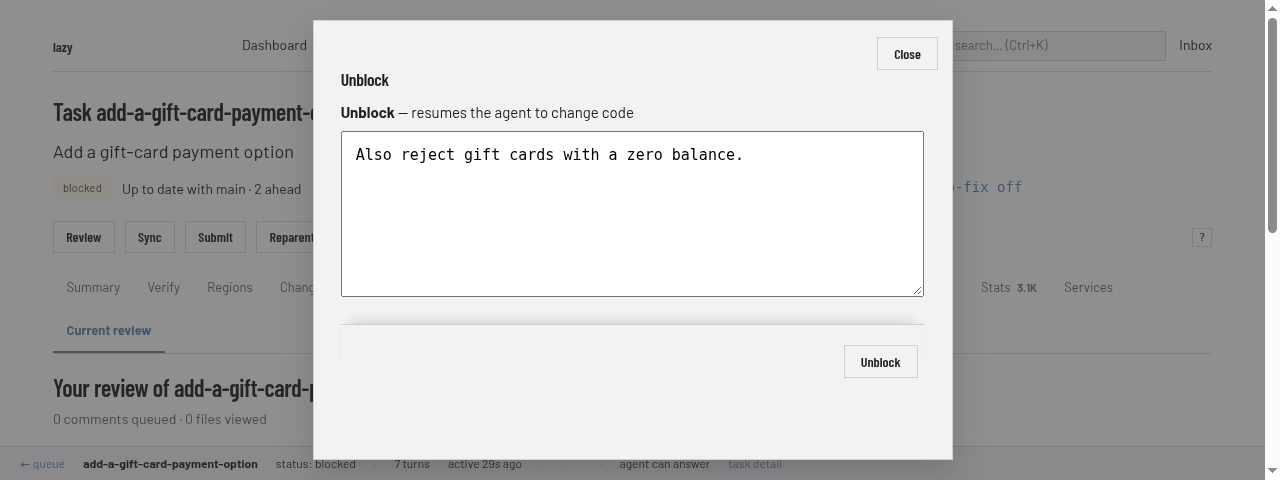
If something needs changing, click Unblock, type what the agent should do next in the box, and click Unblock in the dialog. The agent resumes and carries your feedback; when it finishes, review again.
6. Accept
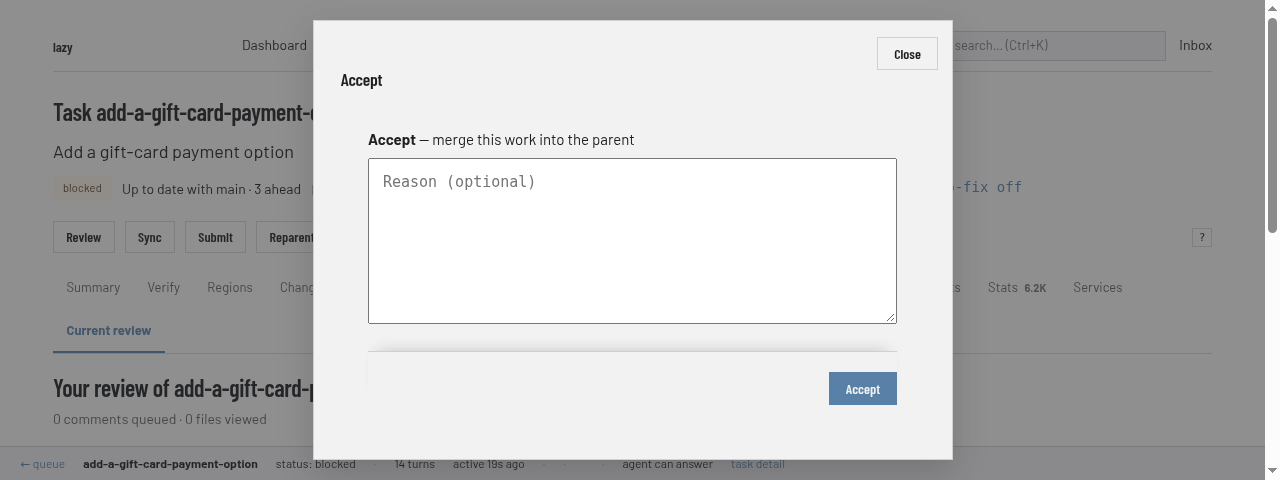
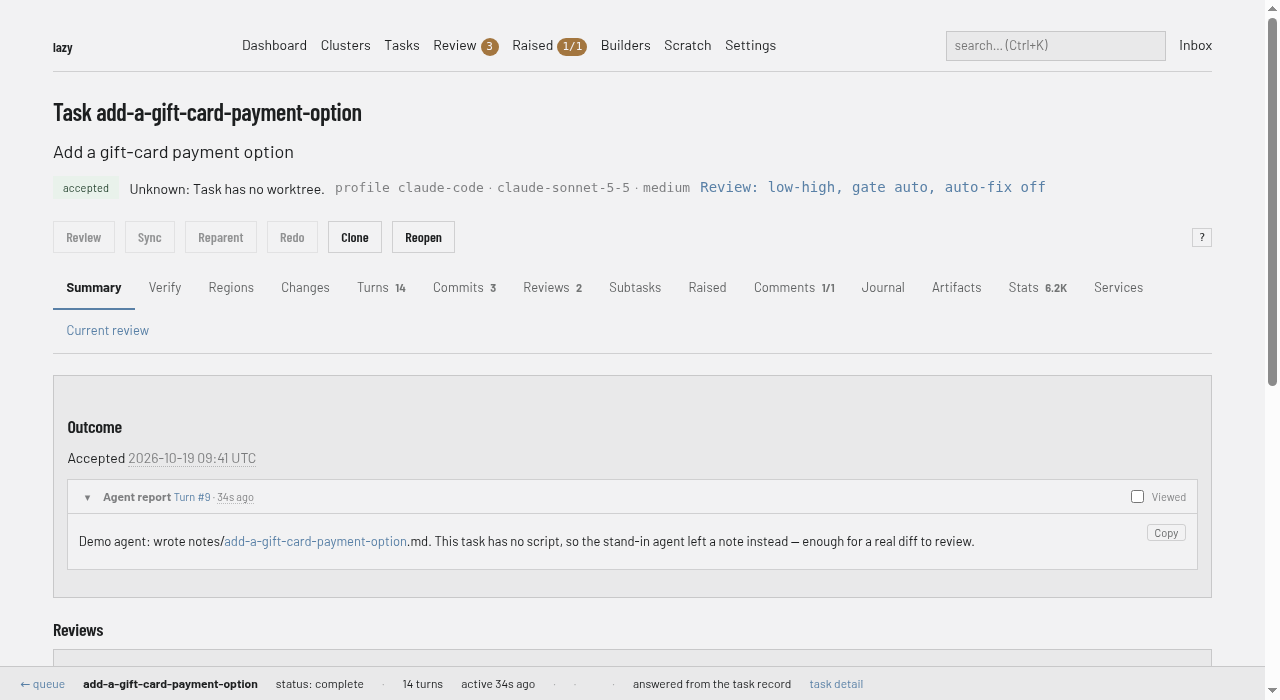
When you are happy, check that the destination is the one you chose in step 2: the Accept dialog says only that it merges into the parent, and for a subtask the task's Parent link shows which task. Then click Accept. A dialog asks for an optional reason; click Accept to confirm. If your project protects the target branch, the dialog also asks for your approval passphrase (see Protected branches). The work is merged into the task's target (here, the default integration branch you left Parent blank for), and the task's status becomes complete.
What next
- How to review and accept a task — every way to inspect, send back and accept work.
- How to give feedback — feedback, comments and questions.
- Reviewing in the browser — the review page in detail.
- Review and accept — why accept works the way it does.
- Tasks and turns — what a task is and how it moves through statuses.