Builders
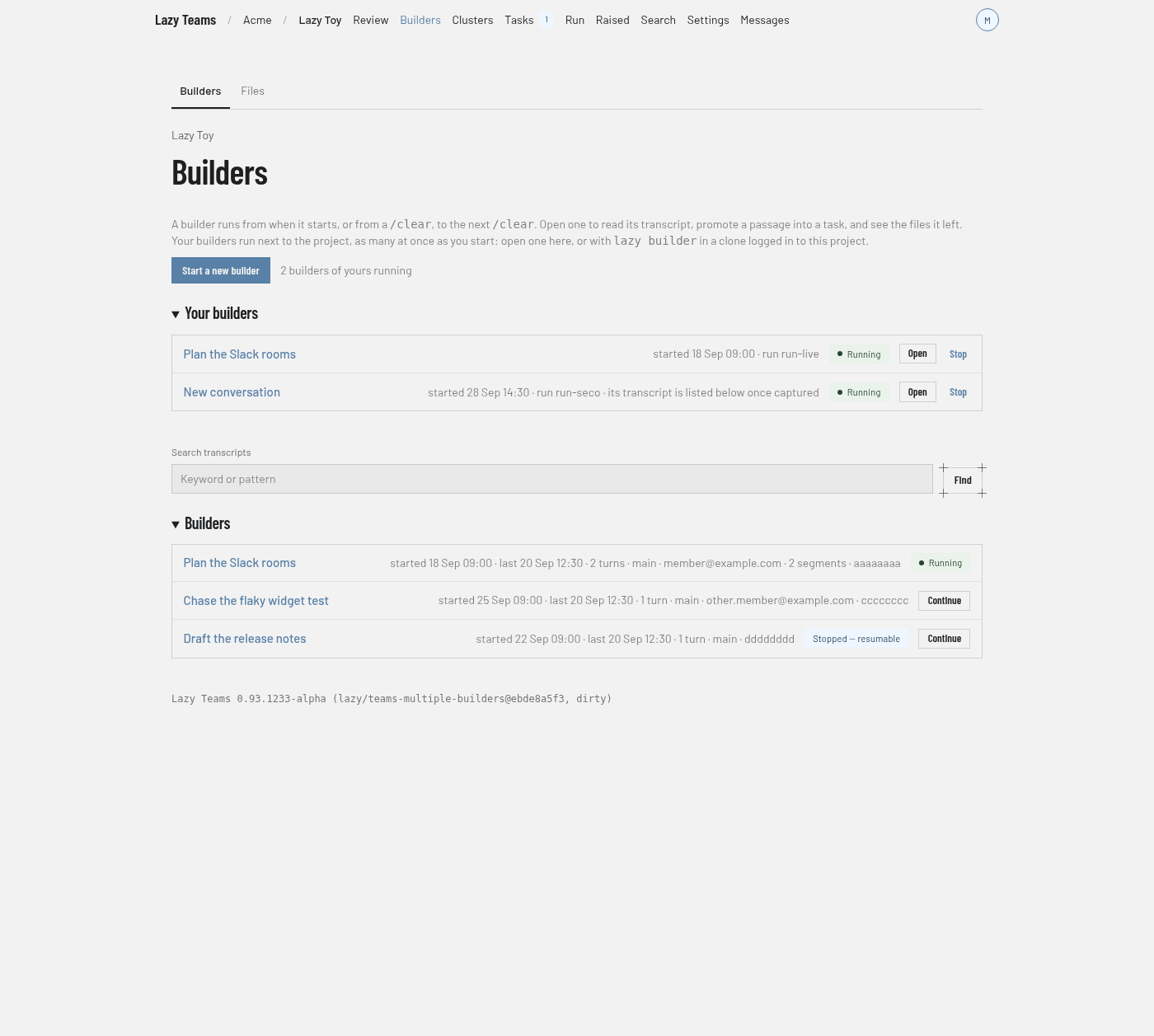
The Builders screen lists the builder conversations for a project; you reach it from Builders in the top navigation.
For what a builder is and how to use one, see Builders in Lazy Teams.
Section tabs
Two tabs sit above the title: Builders (this screen) and Files, which lists the files builders left in scratch for the whole project.
Header and introduction
The title is Builders, with the project name above it as a link back to the project overview. A short paragraph explains that a builder runs from when it starts, or from a /clear, to the next /clear, and that you can open one to read its transcript, promote a passage into a task and see the files it left. It also says your builders run next to the project, as many at once as you start: you can open one here, or with lazy builder in a clone logged in to the project.
Starting a builder
Start a new builder is always there. Each press starts another builder of yours with a fresh conversation; builders you already have keep running. The project can run a limited number of builders at once across all its members; a start beyond that is refused with a message saying so. Beside the button, a count says how many of yours are running and how many are stopped.
Runs on, beside the button, picks the agent the new builder runs on: the project's builder profile (the default), or any Claude Code or Codex profile the project has. A Codex builder is paid with your own connection for that profile; with none, the start is refused and says which profile needs one. A builder keeps the agent it started on, Resume included, and Your builders names it for a builder not on the project's builder profile. When the project has a Codex profile, a line under the button says what is different about a Codex builder.
If you are not allowed to open a builder, the button is replaced by a notice that a builder runs on the account of the person using it, so it can only be opened in your own name.
Your builders
Every builder of yours that has not ended is listed in Your builders, above the list of all builders. Each row shows:
- what it is working on: the title of the conversation it carries, or New conversation for a builder whose transcript has not been captured yet;
- when it started, and how it last ended if it stopped unexpectedly;
- a state badge (Running, Starting or Stopped — resumable);
- Open and Stop while it runs, or Resume while it is stopped.
Open goes to the builder's terminal. Stop stops that builder only and keeps its conversation; Resume starts that same builder again. Your other builders are never touched.
Search transcripts
The Search transcripts box takes a keyword or pattern and has a Find button. With a query, the page lists Matches: each row gives the builder's title, its start time, the number of matches and an excerpt. If nothing matches you see No matching builders; clear the search to see every builder again.
Builders list
Each row is one builder. The row shows the title and a line of details, and links to the builder's page. A badge on the right shows the state of its run, for example Running or Stopped — resumable. A builder with no badge has no run attached. Your own builders that are not running also carry a Resume button (see Resuming a builder). An empty project shows No builders yet, and a builder is listed once its transcript has been captured.
A builder's page
Opening a builder shows:
- Details: Id, Run, Started, Last activity, Branch, Messages, and Segments when the transcript was stitched from more than one.
- Your builder (only for your own run of this builder): the run's state, Stop while it runs, Resume while it is stopped, and End, which asks for confirmation. Ending finishes the run; the transcript is kept, and you can still resume the builder later from the list. While it runs, a terminal is shown here.
- Resume (your own builder, when it has no run of yours attached): resumes it, as described below.
- Create a task from messages: select the messages you want in the transcript, then choose Create task. You can set Goal, Code, Parent task and Prompt, and Create backlog task makes a task in the backlog without starting it. Empty fields use defaults, as the hints on the page describe.
- Transcript: the messages, paged with Earlier and Later.
- Files this builder left: the scratch files attributed to this builder.
Resuming a builder
Resume continues one of your own builders, stopped or ended, in a builder run of yours, like lazy builder --resume <id> does on the command line. It runs on your account and spends your credential. The page goes to the start page and then to the running builder.
- Resume opens an additional builder. Builders of yours that are already running keep running. If the builder you picked is already running in one of yours, Resume opens that one instead of starting it twice.
- If the builder's session file is no longer on the server, Resume says so and starts nothing. The transcript can still be read on its page.
- A teammate's builder has no Resume button: Resume carries over the whole session, including the commands it ran and their output, so it is only for the person who had the conversation. Use Continue from a summary instead.
Continuing from a summary
Continue from a summary (Continue in the list) is on every builder, yours and your teammates'. It starts a new builder of yours, on your account and your credential, seeded with a summary of the builder's transcript and a line naming that builder and who had it.
- The summary is made from the transcript shown on the builder's page — what each person and the builder wrote — and never from the commands the builder ran or their output.
- The new builder starts a fresh conversation. It is told the summary is background, and can read the original transcript if it needs more.
- In offline mode no model runs, so the new builder gets the last messages of the conversation instead, labelled as an excerpt.
- Continue opens an additional builder. Builders of yours that are already running keep running.
- A continued builder's page shows Continued from, linking to the original; the original's page shows Continued as, linking back. The link appears once the new builder's conversation has been captured, within about half a minute of it starting.